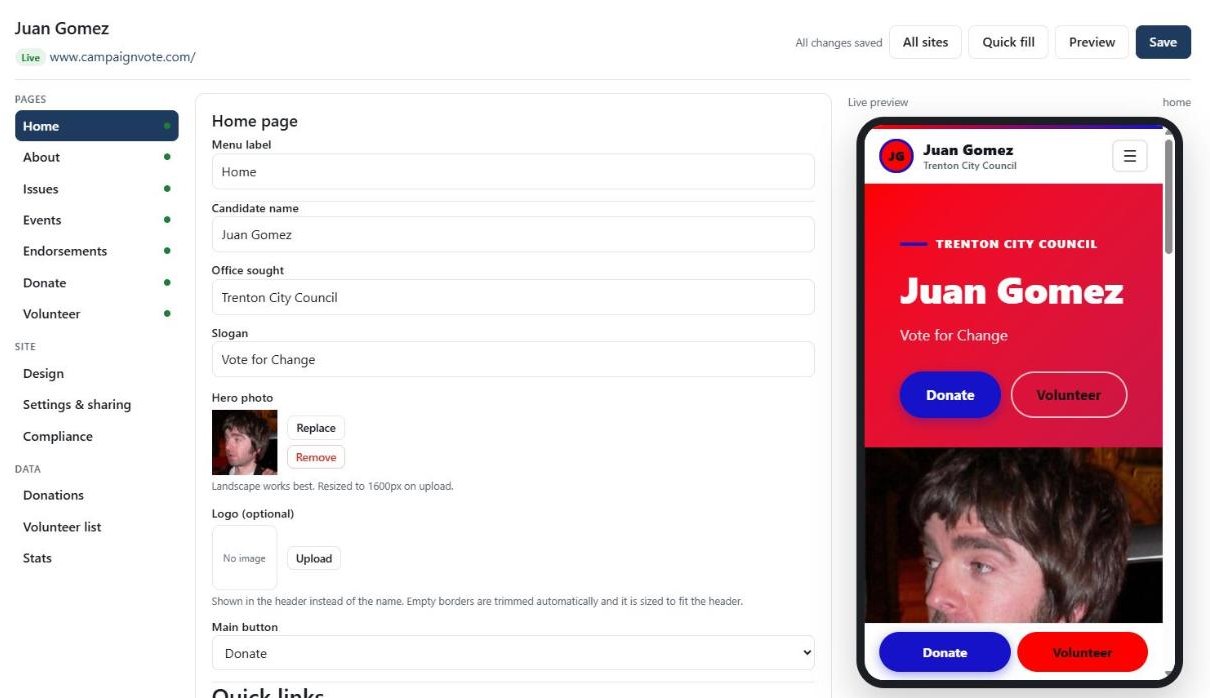
The editor: menu on the left, the form in the middle, a live phone preview on the right.
Find your way around
Pages
Home, About, Issues, Events, Endorsements, Donate and Volunteer. Click a page to edit it.
Site
Design (colors, fonts, template), Settings & sharing (publish, links, QR code, social links) and Compliance.
Data
Donations, Volunteer list and Stats show who gave, who signed up and how many people visited.
Common changes
1
Change text
Click a page on the left, then click into any box and type. For example, on Home you can change your Candidate name, Office sought and Slogan.
2
Change a photo
Next to a photo, click Replace and choose a new picture, or Remove to take it away. Wide (landscape) photos work best for the main photo. Large photos are resized for you.
3
Add or remove items
Lists like priorities, events and endorsements have + Add buttons. Use Remove to delete an item and the arrows to change the order.
4
Show or hide a page
At the top of each page’s form, turn Show in menu on or off. Hidden pages disappear from your site’s menu. A green dot in the left menu means the page is showing.
5
Change colors, fonts and template
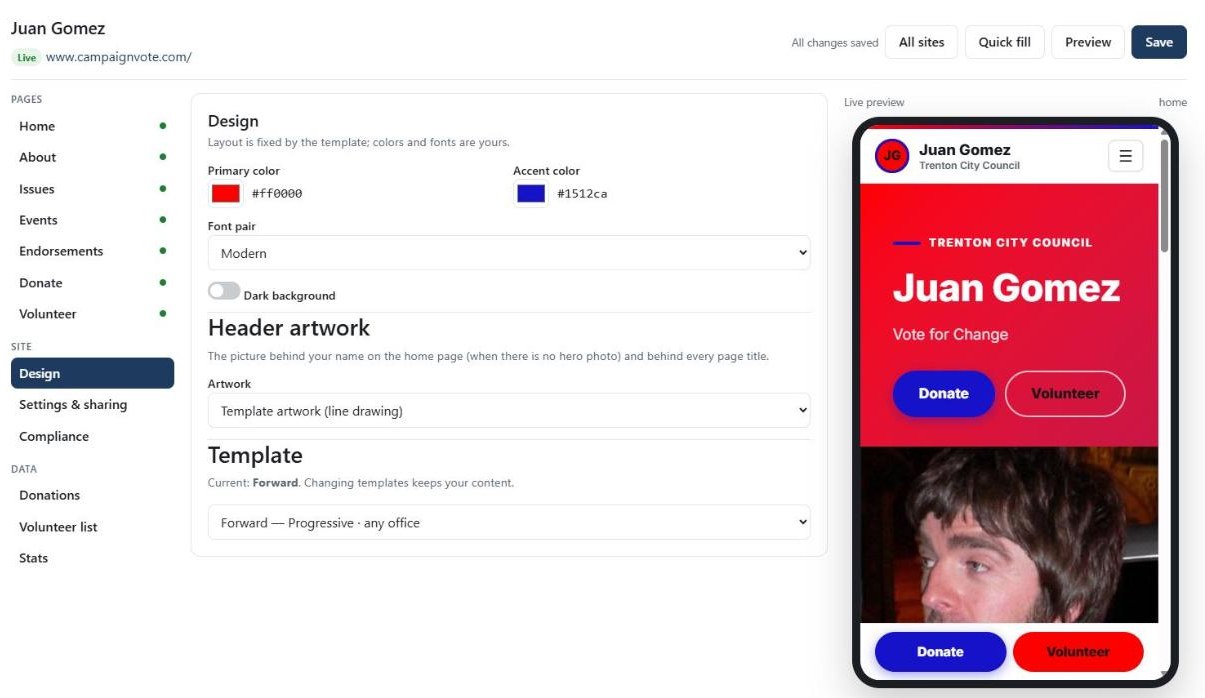
Click Design. Pick a Primary color and Accent color, a Font pair, and the header artwork. Changing the Template keeps all of your content.
The Design panel.
6
Save
Click Save at the top right. When it says All changes saved, your live site is updated.
Save, Preview and All sites are always at the top.
7
Preview
Click Preview to see the full page in a new tab before you share it.
Helpful extras
Quick fill
Click Quick fill at the top to be walked through the most important fields one at a time.
Writing help
Where you see Write for me, Improve or Shorten, AI can draft text for you. Always check every fact before you publish.
Works on your phone
You can edit from a phone or tablet too. The preview appears below the form on small screens.