Your name, the office you are running for and a short slogan
A clear photo of you (wide photos work best)
An email address for your campaign
A few sentences about you and your top priorities
Step by step
1
Create your free account
Go to Create your free account. Enter your name, your email and a password, then click Create my account. You go straight to your dashboard.
2
Sign in
Go to the Sign in page, enter your email and your password, and click Sign in. You arrive at your dashboard.
3
Start a new site
Click Start my site (or + New site at the top right).
4
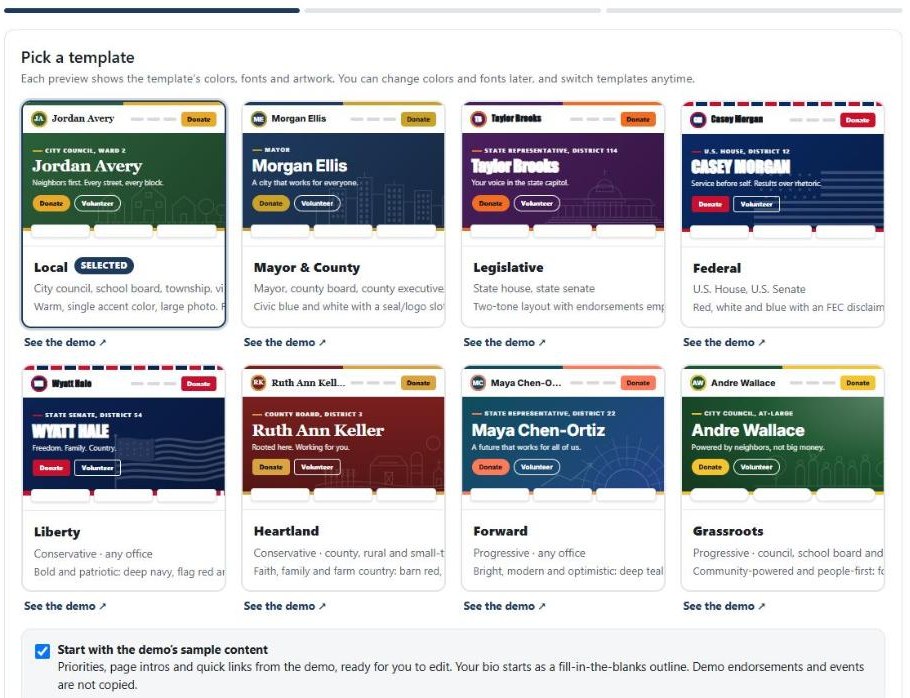
Pick a template
Each picture shows the template’s colors and style. Click the one you like. Keep Start with the demo’s sample content checked to begin with example text you can change. Click Continue. You can switch templates later and keep your content.
Pick a template. Click "See the demo" to view a full sample site.
5
Tell us about the campaign
Type your Candidate name, the Office you are running for and your slogan. Click Continue.
6
Add your photo
Click Upload and choose your photo, then click Create my site.
7
Fill in the rest with Quick fill
Quick fill walks you through the most important parts one screen at a time. Click Next to move on, or Skip for anything you want to do later. At the end click Finish and view my site.
8
Publish your site
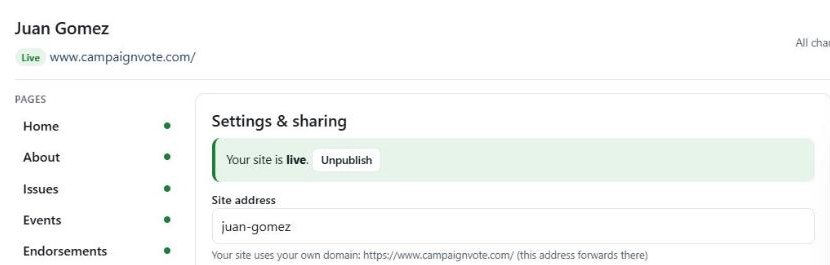
New sites start unpublished, so only you can see them. When you are ready, open Settings & sharing and click Publish now. The green box then says Your site is live.
Settings & sharing shows whether your site is live.
Tip: check it on your phone
Most voters will see your site on a phone. Open your site on your own phone before you share it.